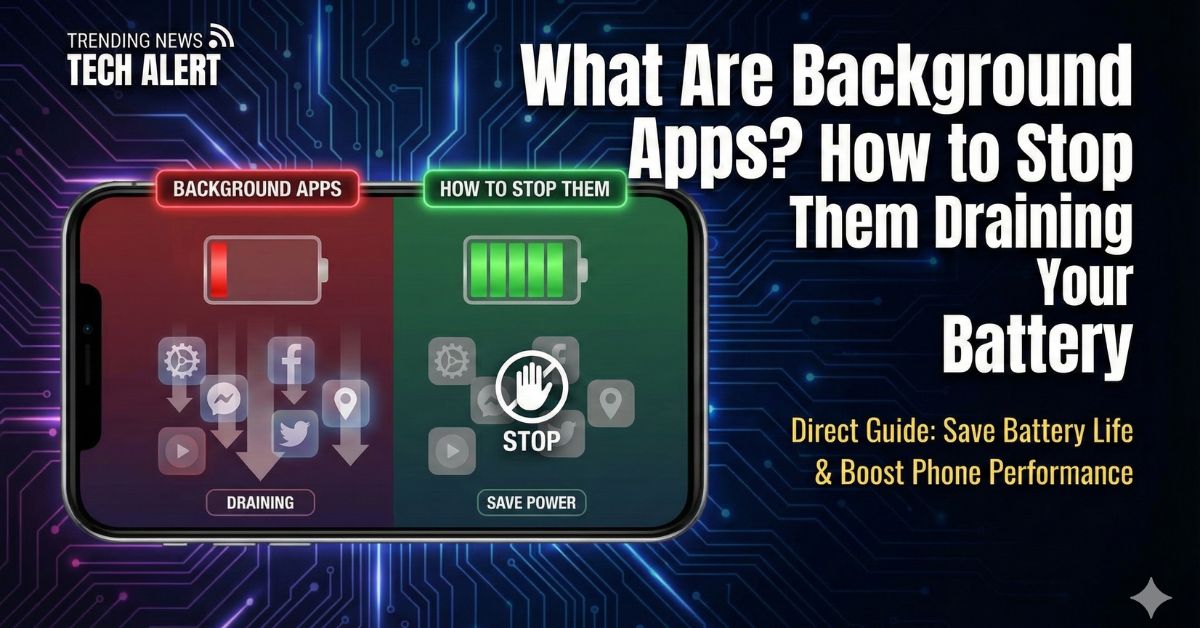
Have you ever thought about why our phone battery drains so quickly even when we don’t use our smartphones that much? Surely, almost every smartphone user has faced this problem at some point. So friends, in today’s article we are going to talk about exactly this issue—why does this happen? Let’s find out the answer. Most of the time, the reason is right in front of us, and that reason is background apps.
Friends, in India there are many users who face this problem on a daily basis, but they don’t realize that some apps keep working in the background in a hidden or transparent way. In this article, we will explain everything to you in detail—what background apps are, whether they are dangerous for your phone or not, and whether you can manage them to improve your phone’s speed.
What Actually Are Background Apps?
In simple terms, background apps are applications that continue to run silently even after you have closed them or locked your phone screen.
When you press the “Home” button, an app disappears from the screen, but it doesn’t always stop working. It stays active in the “background” to perform tasks like:
- Checking for new WhatsApp messages or emails.
- Syncing your photos to Google Photos or iCloud.
- Updating your live location (like in Uber or Google Maps).
- Refreshing news feeds or weather updates.
While this feature makes your life easier—because you get notifications instantly—it comes at a cost.
Why Do Apps Run in the Background?
Not all background activity is bad. In fact, most of it is necessary for a “smart” phone to function correctly.
- Multitasking: If you are listening to music on Spotify and switch to check Instagram, the music keeps playing. This is a background process.
- Instant Alerts: If WhatsApp didn’t run in the background, you would never receive a message until you manually opened the app.
- Fast Loading: Apps like Facebook or Instagram keep some content ready so that when you open them, the feed loads immediately without waiting.
The Big Problem: Battery Drain and Data Usage
For many Indian users with budget Android phones or limited daily data plans (like 1.5GB or 2GB), background apps can be a major headache.
1. Battery Drain
Apps that constantly “wake up” your phone’s processor to check for updates suck the life out of your battery. Social media apps (Facebook, Instagram) and utility apps (Truecaller) are known to be heavy battery consumers.
2. Data Consumption
If you have “Background Data” turned on, apps will keep downloading updates and ads even when your phone is in your pocket. This can eat up 100MB–200MB of your daily data without you realizing it.
3. Phone Lag
If too many apps are running in the background, they use up your phone’s RAM (Random Access Memory). On phones with 4GB or 6GB RAM, this can make the device feel slow or “hang” while playing games or typing.
How to Check and Stop Background Apps
You don’t need to be a tech expert to fix this. Here is how you can stop unnecessary apps from running in the background.
For Android Users (Samsung, Xiaomi, Realme, OnePlus)
Android gives you control over which apps can use battery in the background.
- Go to Settings > Apps (or Manage Apps).
- Select an app (e.g., Facebook).
- Tap on Battery or Battery Usage.
- You will usually see three options:
- Unrestricted: The app can run freely (Bad for battery).
- Optimized: The phone decides when to stop it (Recommended).
- Restricted: The app will never run in the background.
- Note: If you “Restrict” WhatsApp, you might not get message notifications until you open the app.
To stop Background Data:
- Go to Settings > Apps > Select App.
- Tap Mobile Data & Wi-Fi.
- Turn OFF the toggle that says “Background Data”.
For iPhone (iOS) Users
Apple has a specific feature called Background App Refresh.
- Go to Settings > General.
- Tap on Background App Refresh.
- You can turn it OFF completely (saves maximum battery) or turn it off for specific apps like Amazon, Facebook, or Games.
- Tip: Keep it ON for Maps and WhatsApp, but OFF for almost everything else.
Myth vs. Fact: Should You “Swipe Close” All Apps?
You might have a habit of opening your “Recent Apps” menu and swiping away every single app to “clean” the phone.
Stop doing this!
Tech experts and companies like Google and Apple have confirmed that constantly force-closing apps actually worsens battery life.
- Why? When you force-close an app, the phone removes it from the memory. When you open it again 5 minutes later, the processor has to work twice as hard to load it from scratch.
- What to do instead: Only close apps you won’t use for the rest of the day (like a heavy game or a banking app). Let frequently used apps like WhatsApp or Instagram stay in the memory; your phone’s OS is smart enough to manage them.
Summary: What Happens Next?
All smartphone companies are becoming smarter day by day. In the new updates of Android 15 and iOS 18, artificial intelligence is used to understand your usage patterns. These updates automatically close background apps that you don’t use much. But until you buy a new and expensive phone, you have to manage background apps manually.
You might not know this, friends, but I have personally experienced this, and this is the only and best way to keep your phone running smoothly and to save battery effectively.
Frequently Asked Questions (FAQs)
Q1: Will I stop receiving messages if I turn off background data?
Yes, for apps like WhatsApp or Telegram, if you turn off background data, you may not receive messages until you open the app yourself.
Q2: Which apps drain the most background battery?
Usually, social media apps (Facebook, Instagram, Snapchat), location apps (Google Maps, Uber), and dating apps drain the most battery because they constantly sync data.
Q3: Is it safe to restrict background activity for all apps?
It is safe, but not convenient. You should not restrict essential apps like Phone, Messages, WhatsApp, or Alarm apps, otherwise, you might miss important calls or alarms.
Q4: Does “Data Saver” mode stop background apps?
Yes. When you turn on Data Saver (Android) or Low Data Mode (iPhone), the phone automatically blocks most apps from using data in the background.
Q5: Why does my phone get hot when not in use?
If your phone is hot while sitting on the table, a background app might be “stuck” or trying to upload a large file. Restart your phone to fix this.